How to Create a Student’s Member Portal Account
A user account gives a student access to the Member Portal, where they can sign up for classes, pay invoices, view agreements and documents, see their attendance and promotions, and pull up their check-in barcode.
Several students at once
If you’re setting these up for the first time, don’t work through profiles one by one.
Go to the Student List and use the Send User Account Invites action. It pre-filters to active students who have an email address and no account. Select who you want to send invitations to and set the restrictions for the whole batch. See How to Use the Student List.
One student
- Open the student’s profile.
- Scroll to the User Account section at the bottom of the left column.
- Click Create User Account.
They’re emailed a username and a temporary password.
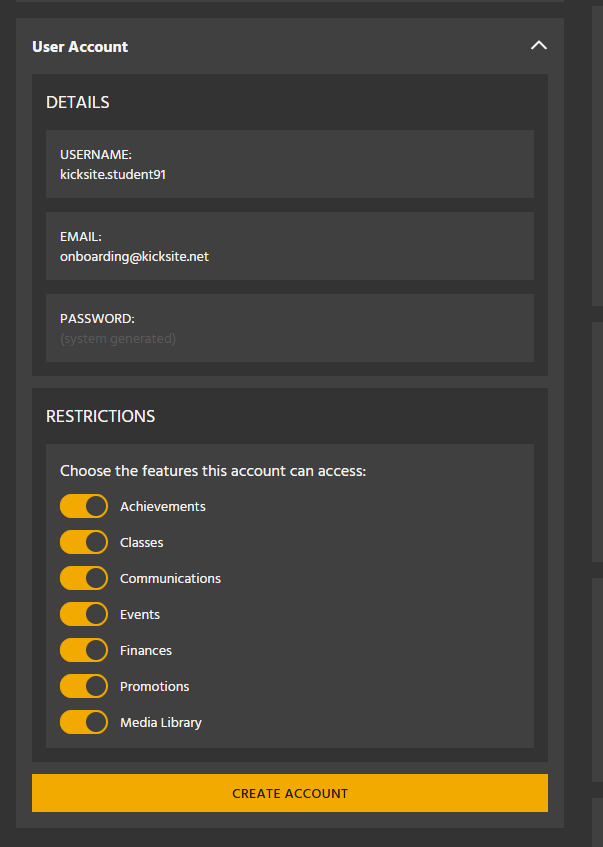
Once the account exists, this section shows their username, email address, and a masked password.
Student sign-in process
- Open the email and click the sign-in link.
- Log in with the username and temporary password.
- Click My Info to change the username and password to something memorable.
Bookmark-worthy: kicksite.net, or your school’s own yourschool.kicksite.net.
Restrictions
Choose which parts of the Member Portal this student can reach. Each feature has a toggle that can be turned on or off and updated at any time.
Turn off Media Library, for instance, and that student won’t see it at all.
Most schools leave everything on. The exception worth considering is Finances for a student whose parent handles payment — though if the parent is the family primary, they’ll see it anyway.
Families
Families can have one unified account held by the primary person. The primary can view every family member’s profile from the portal.
Each student can have their own account – the student will only see their own information, not the family’s.
Troubleshooting
Create User Account isn’t available. No email address on the profile, or the address already belongs to another user.
They never got the email. Check spam, then check the address is right. Close the account and create it again to resend.
They can’t log in. Check case and trailing spaces, then confirm they’re using the username rather than their email address. Then check they’re Active — inactive students lose portal access silently.
Nothing shows in the portal. Their restrictions may have everything turned off.
More in Troubleshooting Student Login Problems.
Limitations
- One user account per family, held by the primary.
- Email address required, and unique across all of Kicksite.
- Inactive students lose access, without being told why.