How to Set Up Texting in Kicksite
Before you can send text messages to your students and prospects, you need to fill out the Set Up Texting Integration form. This form tells Twilio, our texting provider, that you are texting on behalf of a real business. It starts your toll-free verification, which is what gives you a number you can text from.
Which form you fill out depends on where your school is:
- United States and Canada: Use the form in your Kicksite software. The rest of this article walks you through it.
- United Kingdom: Fill out this form.
- Australia: Fill out this form.
At this time, Kicksite does not support texting in other locations.
How to fill out the Texting Integration form
To get to the form, access the main menu by clicking your username in the upper-right corner and then select Integrations from the drop down. You’ll be redirected to the Integrations page. Once you’re there, find and click the Text Messaging with Twilio card.
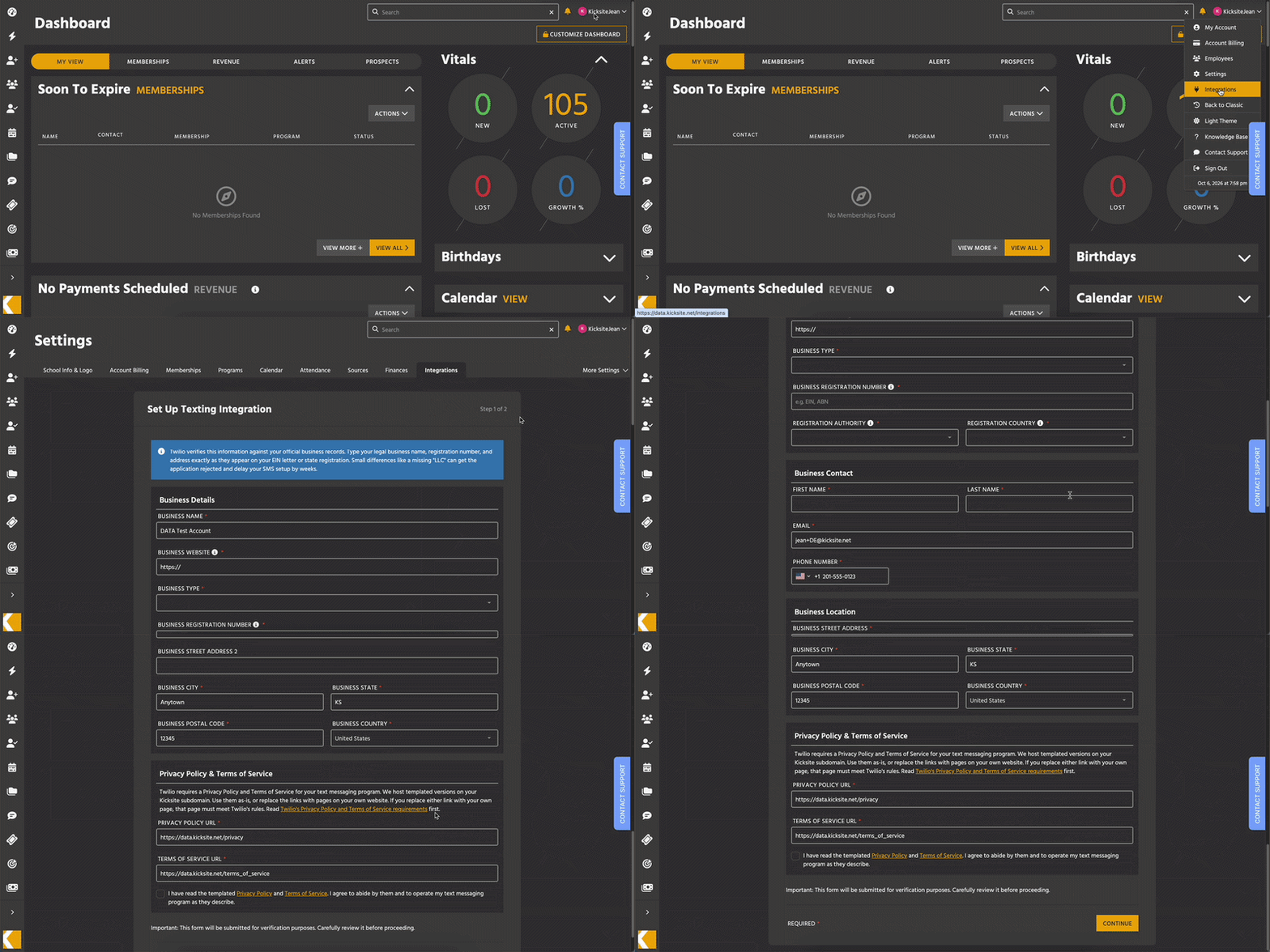
Step 1: Business details, contact, location, and your policy pages
Twilio checks the information in this step against your official business records. Type your legal business name, registration number, and address exactly as they appear on your EIN letter or state registration. Small differences, like a missing “LLC,” can get your application rejected and delay your setup by weeks. This is the single most common reason applications are rejected, so it is worth slowing down here.
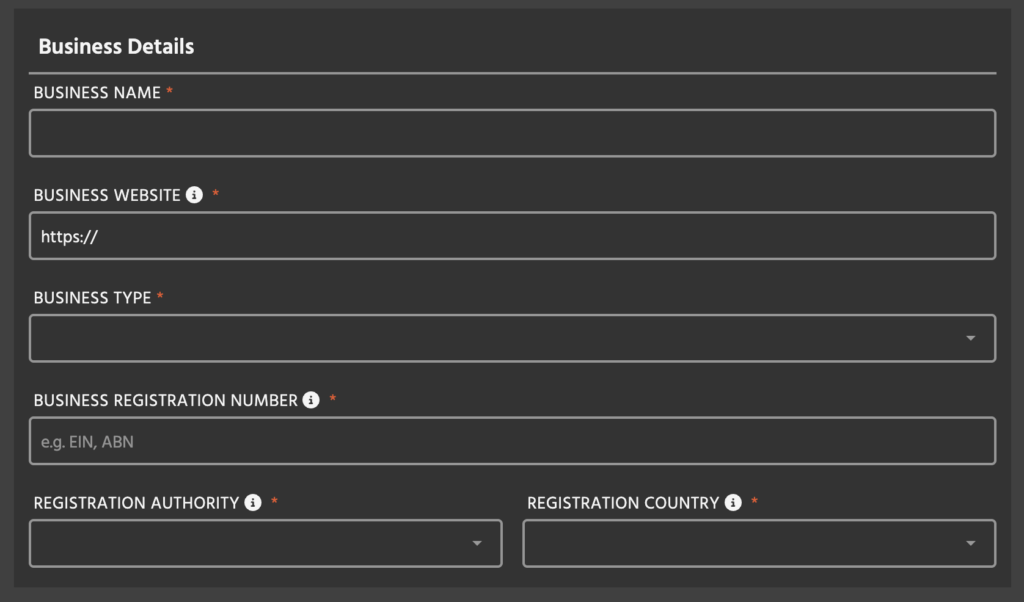
Business Details
- Business Name. This is pre-filled with your school name. Change it if your legal name is different.
- Business Website. Paste the link to your website’s home page. If you do not have a website, you can link to your school’s social media page, such as Facebook or Instagram.
- Business Type. Select the option that applies to your business. Most martial arts schools select Private For-Profit.
- Business Registration Number. Enter your EIN or ABN. This is your business tax ID number. It will be verified exactly as you enter it, so take your time.
- Registration Authority. Select the type of tax registration that applies to your business. For most schools in the United States, this is EIN – Employer Identification Number.
- Registration Country. Select United States or Canada.
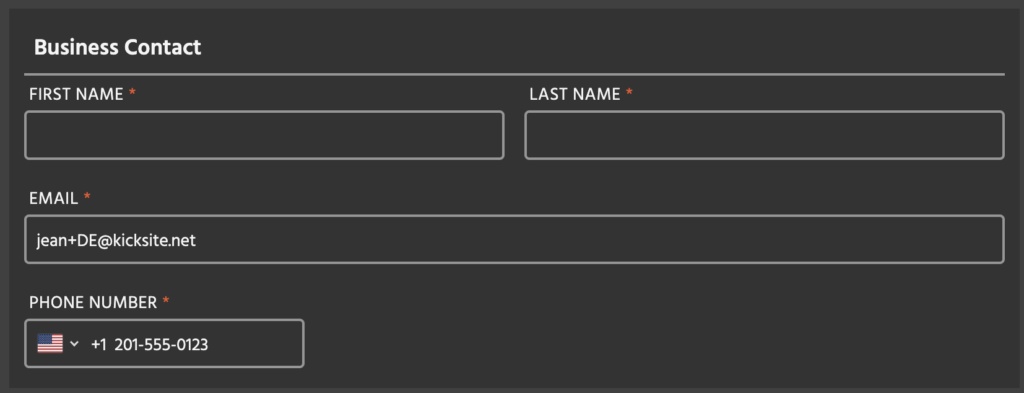
Business Contact
Enter the school owner’s first and last name. The email address and phone number are pre-filled from your admin user account. Make sure these details match what is on your website and social media. They can be updated as needed. Changes made on this form will not affect your admin information in Kicksite software.
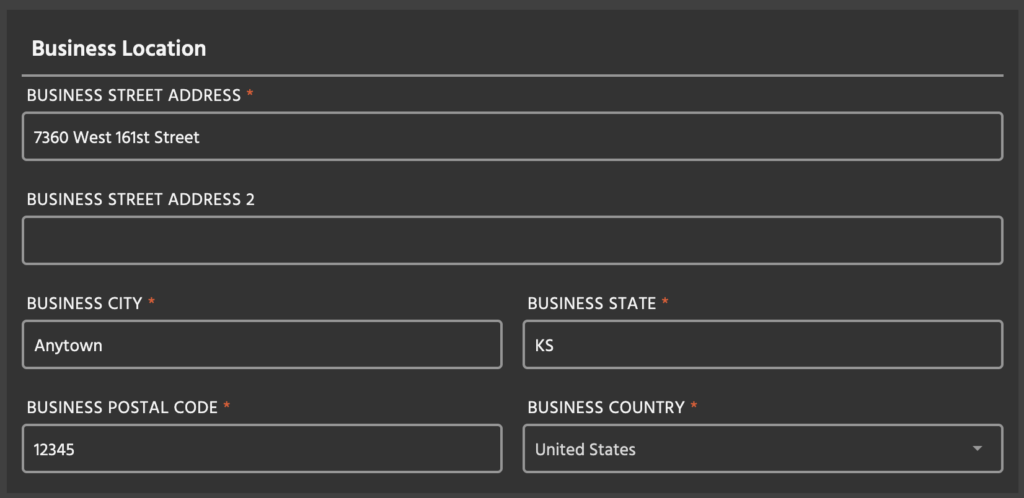
Business Location
These fields are pre-filled from the address in your settings. Check that the address is correct and that it is your business address.
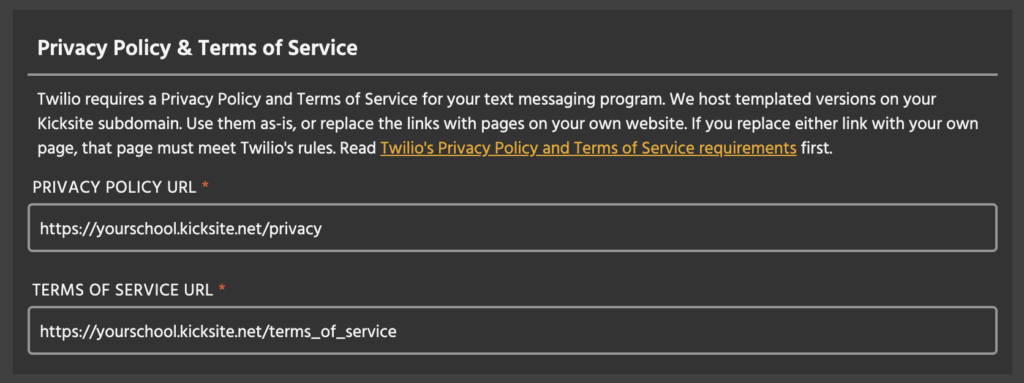
Privacy Policy and Terms of Service
Twilio requires a Privacy Policy and a Terms of Service for your texting program. You have two ways to meet that requirement.
- If you already have these pages on your own website, verify that they meet Twilio’s required standards, and use them. This is the preferred option.
Paste your links into the Privacy Policy URL and Terms of Service URL fields. Before you do, check that your pages cover what Twilio asks for. Twilio’s requirements are here. Scroll down that page to the section on Privacy Policy and Terms of Service content, which is where the specifics live.
- If you do not have these pages, use ours. Kicksite builds both pages for you and hosts them at your own Kicksite address, so both fields are already filled in and you do not need to do anything. Open both links, read them, and then check the box to agree to operate your texting program the way they describe.
One thing to know about these hosted pages: You cannot edit the wording. They are built from your school details and the text itself is fixed. If you need different wording, you will need to put your own pages on your own website and paste those links in instead. - Review everything on this step, then click Continue.
Step 2: Your phone number and messaging program
Phone Number
Choose the toll-free number your messages come from. Your members see this number on every text you send, and they can reply to it.
Messaging Program
Twilio reads this section to confirm what you send and how often. We fill it in for you, and you can submit it as it is. Editing it to describe your own program helps, though, because text that looks copied from another business is a common reason applications get rejected.
- Use Case Summary. This is pre-filled with a description of your school and the kinds of messages you send. Adjust it so it matches how you actually operate. If you text more about events than about billing, say so.
- Estimated Messages Per Month. This one is blank on purpose. Your best guess is fine.
- Sample Message 1 and Sample Message 2. We give you two examples to start from. Replace them with messages that look like what you really send. Write the message text only. We add your business name at the front and the HELP and STOP line at the end.
Your Use Case Summary includes a short link to one of your Lead Capture Forms. That link is what we give Twilio as proof that your members agree to receive texts. Leave that Lead Capture form active while your application is outstanding. Archiving or deleting that Lead Capture Form will create issues with application submission and approval.
Carefully review the whole form one more time. When everything looks right, click Submit for Verification.
What happens after you submit
Your application goes to Twilio for toll-free verification. You can check back on the Integrations page to see where things stand.
Once you are verified, a green checkmark appears on the Text Messaging card, and you can start sending Announcements and using Conversations. Your texting phone number will also show in that space.
How long does verification take?
Verification is usually completed within 5 days, but this depends on Twilio’s queues. Unfortunately, Kicksite is unable to influence the speed of the process.
What happens if verification fails?
If your verification were to fail, a banner appears on your Kicksite Dashboard. Fill out the form again as soon as you can. Waiting can cause significant delays in getting a final approval.