Prospect and Student Statuses
Prospects and students are tracked differently, and this starts with the difference in labels.
- Students have statuses. Three of them, fixed: Active, Frozen, Inactive.
- Prospects have stages. You define them. Rename them, recolor them, add your own, reorder them. These are customizable, so make as many stages as you need to help organize and streamline your Prospect to Student pipeline. The end goal? Convert your Lead to a Student.
Prospect Stages
A stage is a step on the way to becoming a student. They’re the columns on the Prospect List board, and dragging someone between columns is how you move them along their journey of becoming a student.
Every school starts with a default set:
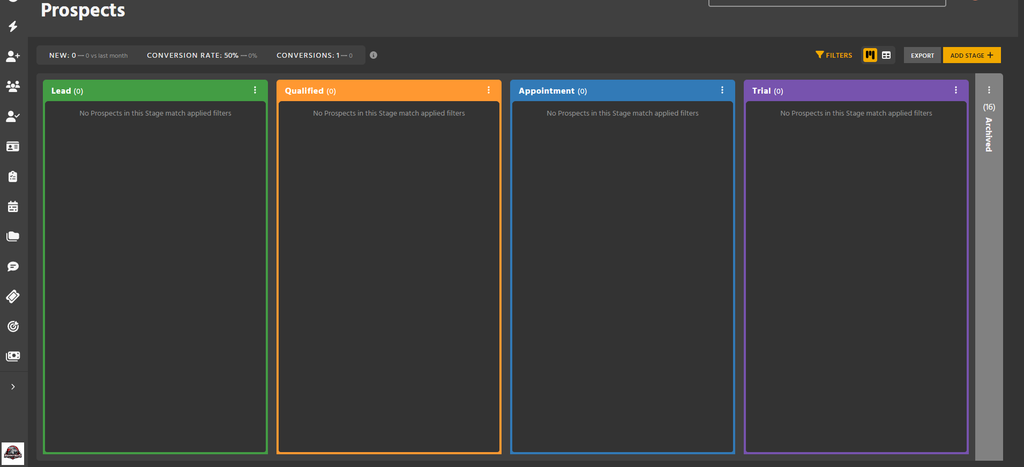
| Stage | What it means |
| Lead | A new prospect that has NOT signed up for a trial membership yet. Example scenario: Employee adds a prospect manuallyExample scenario: A prospect enters through a Landing Page without signing up for any membership at all. |
| Qualified | Confirmed as a real person worth pursuing, not a spam submission. Schools opened before July 2025 don’t have this by default — you can add it.Bonus Tip!: The “Qualified” stage is also helpful if your gym / studio likes to determine if a prospect is qualified after their Trial. If you would like to do this, reorder your stages so that the “Qualified” stage is after the “Trial” stage. That way, if a Prospect qualifies to be a full member, simply drag their name to the Qualified stage after their Trial! |
| Appointment | Booked to visit. Scheduling an appointment moves them here automatically. |
| Trial | On a trial membership. Creating a trial moves them here automatically.Example scenario: Someone signs up for a Trial Membership on your landing page (enabled through your Landing Page settings) |
| Archived | Not pursuing them any more, but keeping the record and their contact information. |
Changing them
Rename any stage, change its color, add your own, and reorder by dragging. A school running a longer sales process might add “Contacted” and “Follow Up” between Lead and Qualified.
Two rules constrain this:
- The “Lead” stage can’t be moved or deleted. It’s where new prospects land. You can rename it if needed, but it will always remain on the far left of your prospect stages.
- The Trial stage can’t be deleted. It’s wired to trial memberships.
Delete the Appointment stage and you lose its automatic behaviour — scheduling an appointment will no longer move anyone. Add it back later and it comes back as an ordinary stage without that wiring.
The color you choose for your stages shows up everywhere in the software, so a prospect’s dot matches their stage wherever you see them. For example, on their individual profile.
Prospect Priority
Separate from the stage that shows which “checkpoint” prospects are in, the prospect’s priority is more useful for deciding who to call based on their interest level:
- Hot (red flame) — ready to decide if they want to continue. Lose them to a competitor if you’re slow.
- Warm (orange flame) — interested, no urgency. The default when they enter the system.
- Cold (blue snowflake) — little interest, needs real follow-up, could lose them because you haven’t heard back for a few days / weeks / months (depending on your outreach preference)
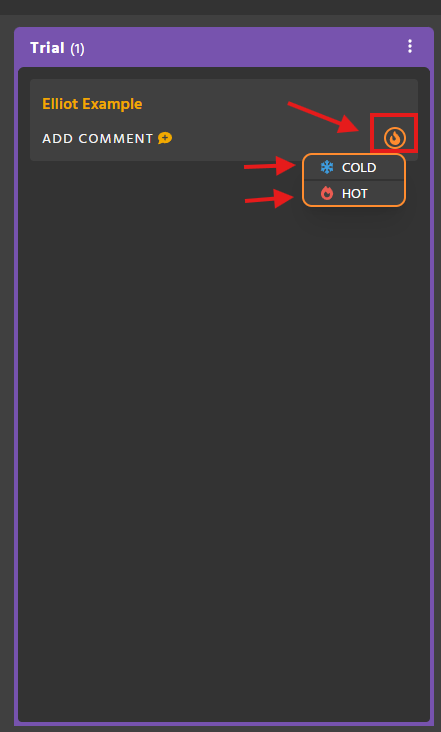
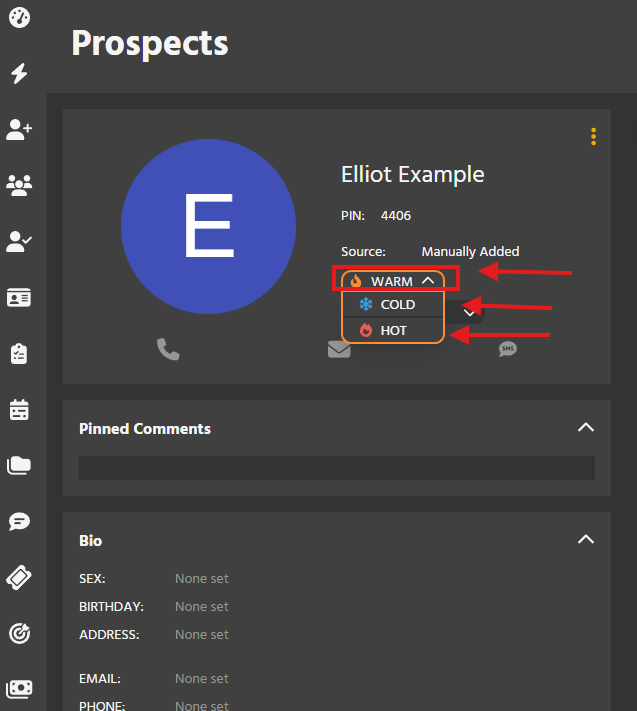
Set the priority status on the prospect’s card or their profile.
Prospects card:
Prospect profile:
Student Statuses
| Status | Color | What it means |
| Active | Green | Attending. Should have a current membership and billing. |
| Frozen | Blue | Temporarily paused — injury, travel, a seasonal break. |
| Inactive | Grey | No longer attending, but you want to hold on to their contact information (perhaps to reach out later). |
Frozen vs Inactive
The distinction matters financially.
- Frozen is a subset of Active. Memberships and recurring billings pause, and frozen students still count towards your subscription tier. Use it for someone who’s coming back. See Scheduled Freeze and Unfreeze.
- Inactive means gone. They don’t count towards your subscription, and inactivating a student inactivates their recurring billings.
If you don’t know whether someone’s coming back, freeze them with a manual unfreeze date. It’s easier to inactivate later than to reconstruct a membership you ended prematurely.
Changing status or stage
- On a profile — the status or stage dropdown beside their name.
- On the Prospects List — drag the card to another column, or use Change Stage in the card’s kebab menu.
- On the Student List — the Change Status action, for many students at once.
Some actions change it for you: scheduling an appointment, starting a trial, or inactivating a trial membership.
Why this matters
Your subscription — active plus frozen is the number your tier is based on.
Targeting messages — announcements to Active students only, or to everyone in one Prospect stage.
Knowing where the pipeline stalls — if forty people sit in Qualified and never reach Appointment, that’s the problem to fix.
Keeping the books straight — inactive students shouldn’t have active memberships or billings.