How to Make Bulk Changes to Prospects
Got a Prospect Stage full of people who went cold months ago? Or a group of archived Prospects you’d like to reach out to again? You can now select as many Prospects as you need on the Prospect List and move all of them to a new stage at once.
Less clicking, a cleaner pipeline, and a cleaner Prospect management process.
To get there, click the Profiles icon in the left sidebar, and then click Prospects. You can also search for the Prospect List in Quick Links.
Switch to the Table view
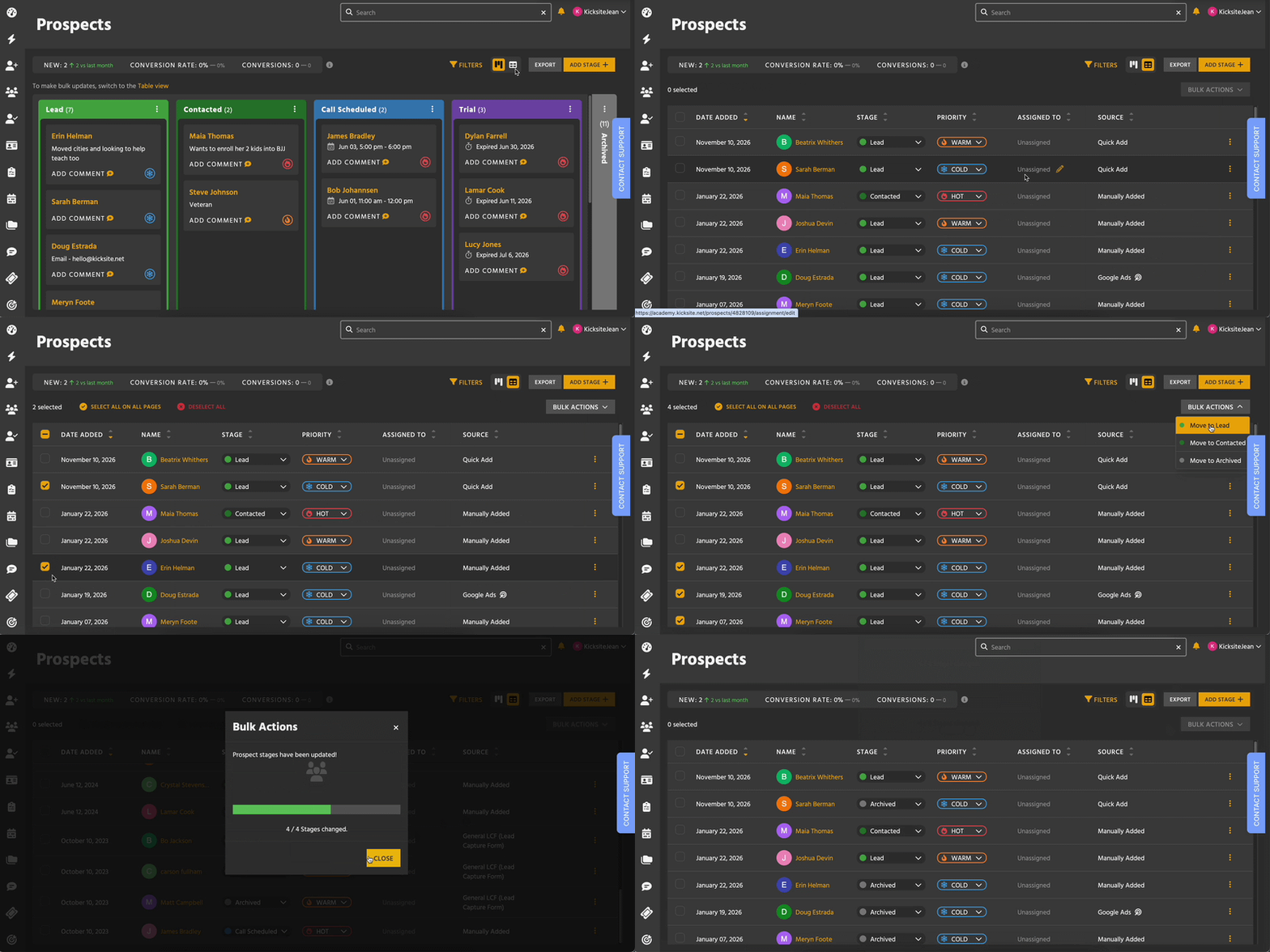
Bulk changes happen in the Table view. If you’re on the Board view, you’ll see a note above the board with a link to switch over. You can also use the view icons in the upper right. Hover over them to see which is the Board view and which is the Table view.
Find the Prospects you want to move
Every column in the Table view is sortable, so you can line up the Prospects that need attention. Filters help, too. For example, filter to the Lead stage to see everyone who’s still waiting there, or filter to Archived to see past Prospects.
Select Prospects
Each Prospect has a checkbox next to their name. Check the ones you want to move. The checkbox at the top of the table selects or deselects everyone on the current page. (See the GIF above.)
After you’ve selected at least one Prospect, you’ll also see options to select all or deselect all. Select all picks up every Prospect on every page, so you can filter to one stage, select all, and work with that whole stage at once.
Move them to a new stage
- With your Prospects selected, click Bulk Actions.
- Choose the stage you want to move them to. Your stages are listed in the same order as on the Board view.
- Check the confirmation pop-up and click Move Prospects to confirm. It shows how many Prospects will move, and how many will be skipped because they’re already in that stage.
- Click Close after the Prospects have been moved to the assigned stage.
The result is the same as changing each Prospect’s stage one at a time.
Moving Prospects to certain stages may require Kicksite to ask for more information. For example, the Trial stage needs a trial membership. That information is different for each Prospect, so you can’t move Prospects into those stages in bulk.
Archive or un-archive in bulk
Archiving works just like any other stage change. Select the Prospects you want to archive and move them to Archived.
Keep in mind that archiving disables any active trials and removes any future class registrations for the selected Prospects.
To bring Prospects back, filter to Archived, select the ones you want, and move them to any other stage. This is handy when you’re running a new promotion and want to reach out to past Prospects again.
If any of those Prospects were archived until a set date, moving them out of Archived in bulk cancels that date. They’ll stay in the stage you moved them to.
Who can make bulk changes
Bulk changes use the same permissions as the matching one-at-a-time action. If you can update a single Prospect, you can update a group of them in bulk.
For more details on setting permissions, check out this Knowledge Base article.