How to Make Bulk Updates to Contacts
Got a pile of old Contacts that are out of date? Or a group of Contacts who asked about classes and should really be Prospects? You don’t have to update them one at a time anymore. On the Contact List, you can select as many Contacts as you need and inactivate, reactivate, or convert them to Prospects all at once.
To get there, click the Profiles icon in the left sidebar, and then click Contacts List. You can also search for Contacts List in Quick Links. Bulk changes work on the Active and Inactive tabs.
Find the Contacts you want to change
Every column on the Active and Inactive tabs is sortable, in both directions. Click a column heading to sort by it, and click it again to reverse the order. This makes it easier to spot the Contacts that need cleanup. For example:
- Sort by Created on to find old Contacts.
- Sort by Source to group Contacts that came in the same way.
- On the Inactive tab, sort by Inactivated on to find Contacts you inactivated recently.
Name sorts by last name. When you sort by the Email or Phone Number columns, Contacts without an email or phone (respectively) will show at the end of the list.
You can also use the Filters and the Search bar to narrow things down before you start selecting.
Select Contacts
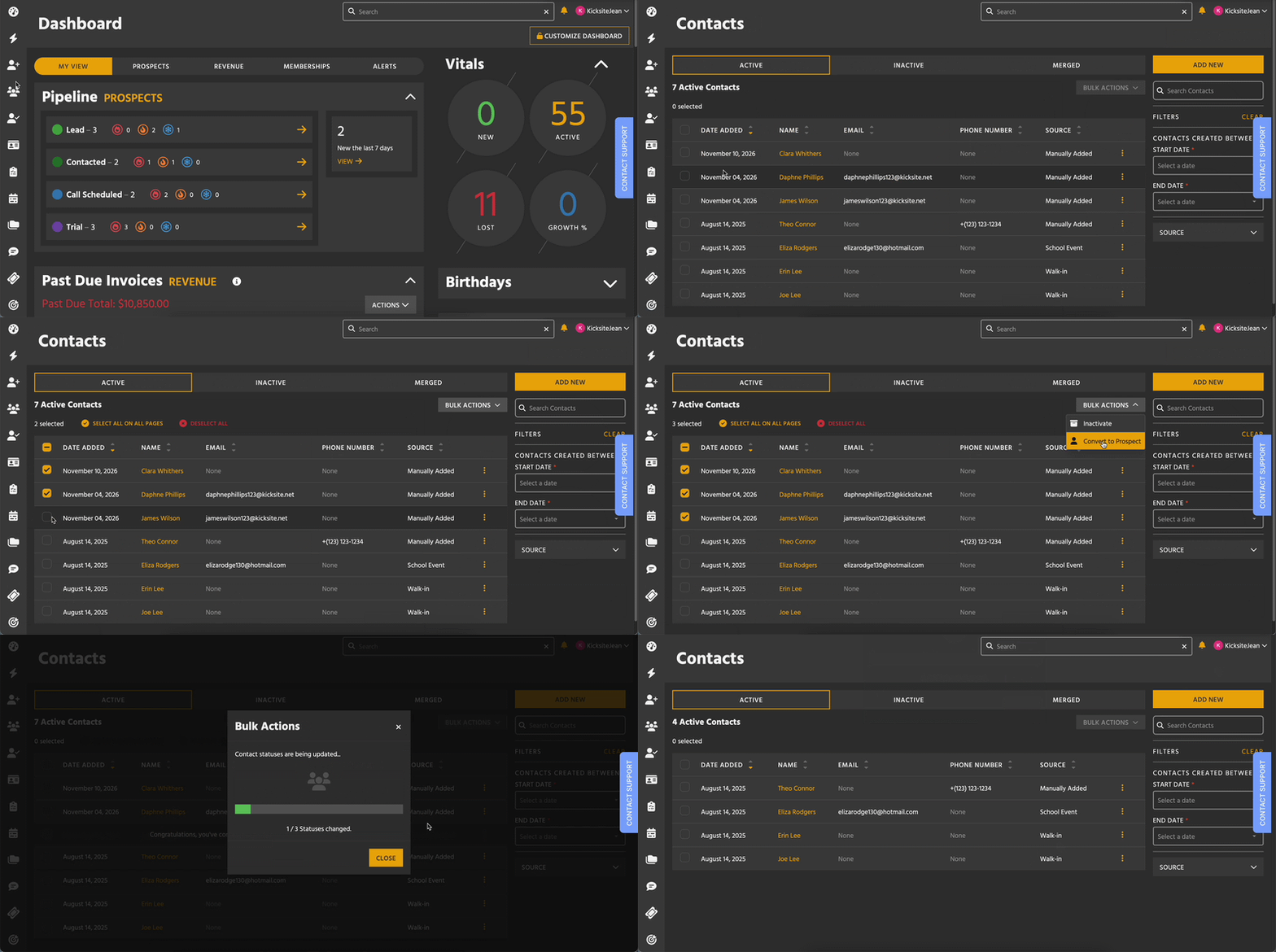
Each Contact has a checkbox next to their name. Check the ones you want to change. The checkbox at the top of the list selects or deselects everyone on the current page.
After you’ve selected at least one Contact, you see how many are selected, along with options to Select All or Deselect All. Select All checks every Contact that matches your current view, on every page, so you can act on hundreds of Contacts without clicking through page by page.
Your selection stays put when you sort or move between pages, so you can select Contacts from different pages as you go. Changing a filter or search, or switching between the Active and Inactive tabs, starts your selection over.
Make the change
- With your Contacts selected, click Bulk Actions.
- Choose the action you want. On the Active tab, you can inactivate Contacts or convert them to Prospects. On the Inactive tab, you can reactivate them.
- Check the pop-up, which shows how many Contacts will change, and click Convert to Prospects (or Inactivate Contacts) to confirm.
- Click Close when the Contacts are done converting. (The GIF above shows converting Contact to Prospects.)
A progress bar shows the changes as they happen. When it finishes, you’re all set.
What each action does
Each bulk action has the same result as making the change to each Contact one at a time:
- Inactivate moves the selected Contacts to the Inactive tab. It’s a good way to clear out old or stale Contacts.
- Reactivate (on the Inactive tab) moves the selected Contacts back to the Active tab, for Contacts that were inactivated by mistake or are relevant again.
- Convert to Prospect turns the selected Contacts into Prospects and puts them in your school’s default Lead Stage, the same stage they’d land in if you converted them one at a time. From there, you can work them on the Prospects List.
Converting a Contact to a Student requires more information, such as their membership details, and that information is different for each person. Because of this, you can’t convert Contacts to Students in bulk. You can still convert them one at a time, of course.
Who can make bulk changes?
Bulk changes use the same permissions as the matching one-at-a-time action. If you can inactivate a single Contact, you can inactivate a group of them.
For more details on setting permissions, check out this Knowledge Base article.