How to Use One-Time Charge
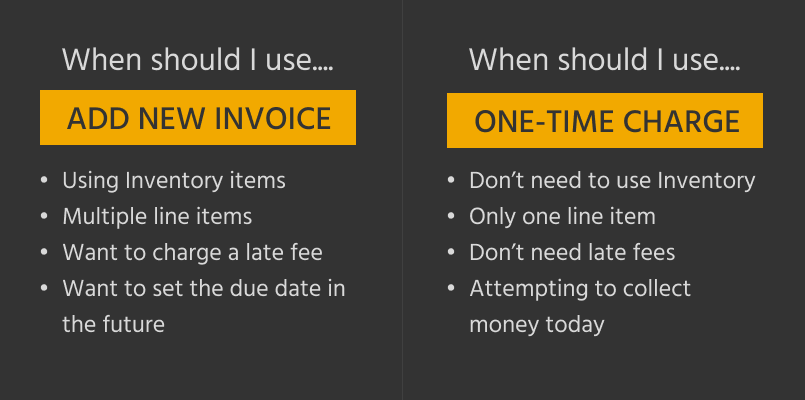
When you need to collect money but don’t need a full invoice, use Kicksite’s One-Time Charge. It’s the quick way to ring up something like a merchandise sale right from the profile.
Open the One-Time Charge window
There are three ways in. Use whichever one is closest to where you’re working.
- From Finances: Go to Finances → Payments tab → One-Time Charge. Then select the student, prospect or family you want to charge.
- From a student’s profile: Go to the student’s profile, then go to Finances module → Add New → One-Time Charge.
- From Quick Links: Open Quick Links and search for One-Time Charge. You can also open Quick Links by pressing the / key on your keyboard.
Fill in the charge and collect payment
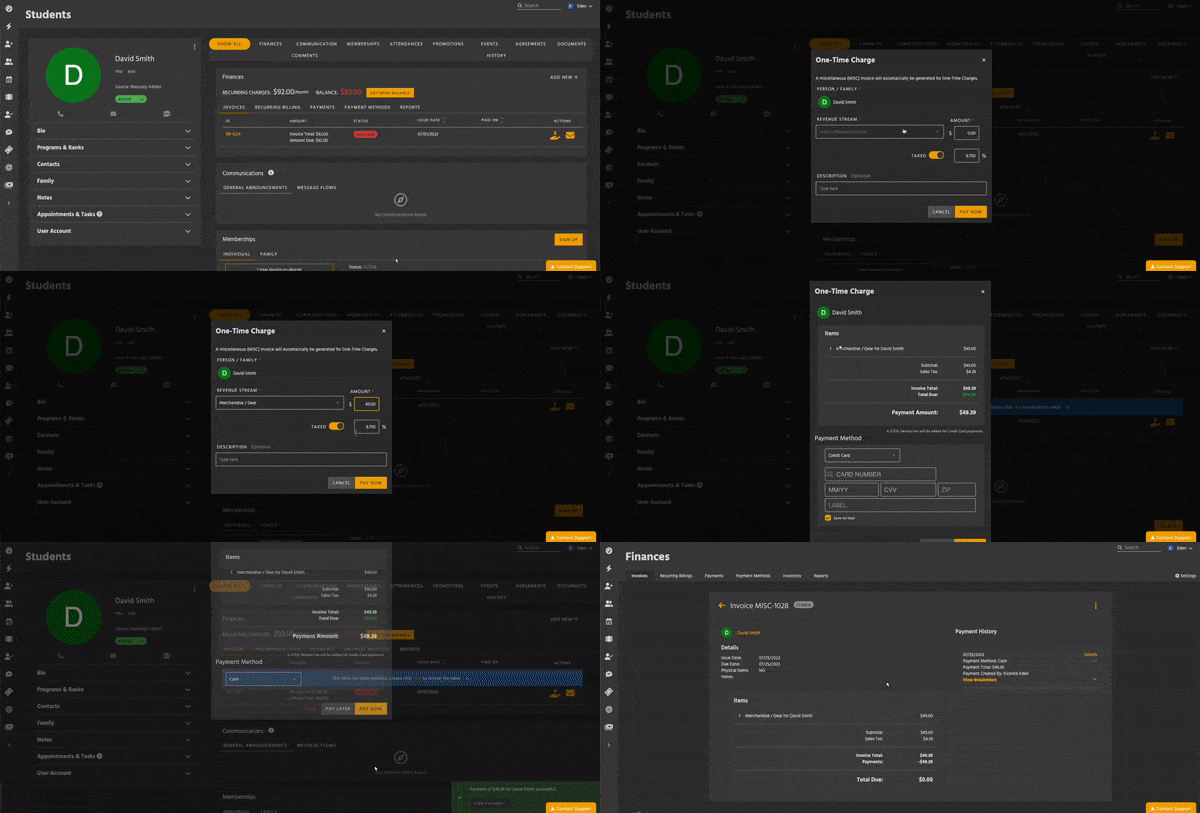
- Choose a Revenue Stream.
- Enter an amount.
- If you need to, set up tax for this charge. This step is optional.
If you’d like, add a description. This step is optional.
- Click Pay Now.
- Review the summary.
- Choose how to finish:
- To collect now, select a Payment Method and click Pay Now again.
- To collect later, or if there’s no Payment Method on file, click Pay Later.
- To throw out the charge because you made a mistake, click Void.
Find a One-Time Charge later
The fastest way to find a One-Time Charge invoice is to check the profile of the person or family it’s attached to. These invoices also appear in the Invoices tab of Finances.
To learn more about invoices and the role they play in managing your school’s finances, read this blog on invoices.
Troubleshooting
You made a mistake on the charge before collecting it. On the summary screen, click Void to discard the charge, then start over.
You can’t find a One-Time Charge you already created. Check the profile of the person or family it’s attached to. You can also look in the Invoices tab of Finances for an invoice with the “MISC” prefix.
Limitations
- You can’t charge a late fee with a One-Time Charge.
- You can’t set a due date in the future.
- You can’t add multiple line items.
- You can’t use different tax rates in the same charge.
For any of these, use the Add New Invoice page instead.