How to Void or Credit an Invoice
There are different options for how to close out or adjust an invoice depending on the situation. Following these methods help keep your records clean and detailed.
| The Situation | Use | What it does |
| The invoice is wrong and nobody has paid | Void | Cancels it outright |
| Part of the balance should be waived | Adjust Balance → Reduce | Lowers what’s owed, keeps the record |
| You’ll never collect any of it | Adjust Balance → Don’t intend to collect | Zeroes it out, keeps the record |
| Money was already collected and needs returning | Refund | Covered in How to Refund a Payment |
Finding the invoice
First, open the invoice:
- Click Finances in the left panel and check the Past Due and Open tabs.
- Go to the person’s profile, open the Invoices tab in the Finances module, and use View More or View All if they have a long history.
- If you’ve just created it, click View Now in the green confirmation.
Click the invoice ID to open its details page.
Voiding an invoice
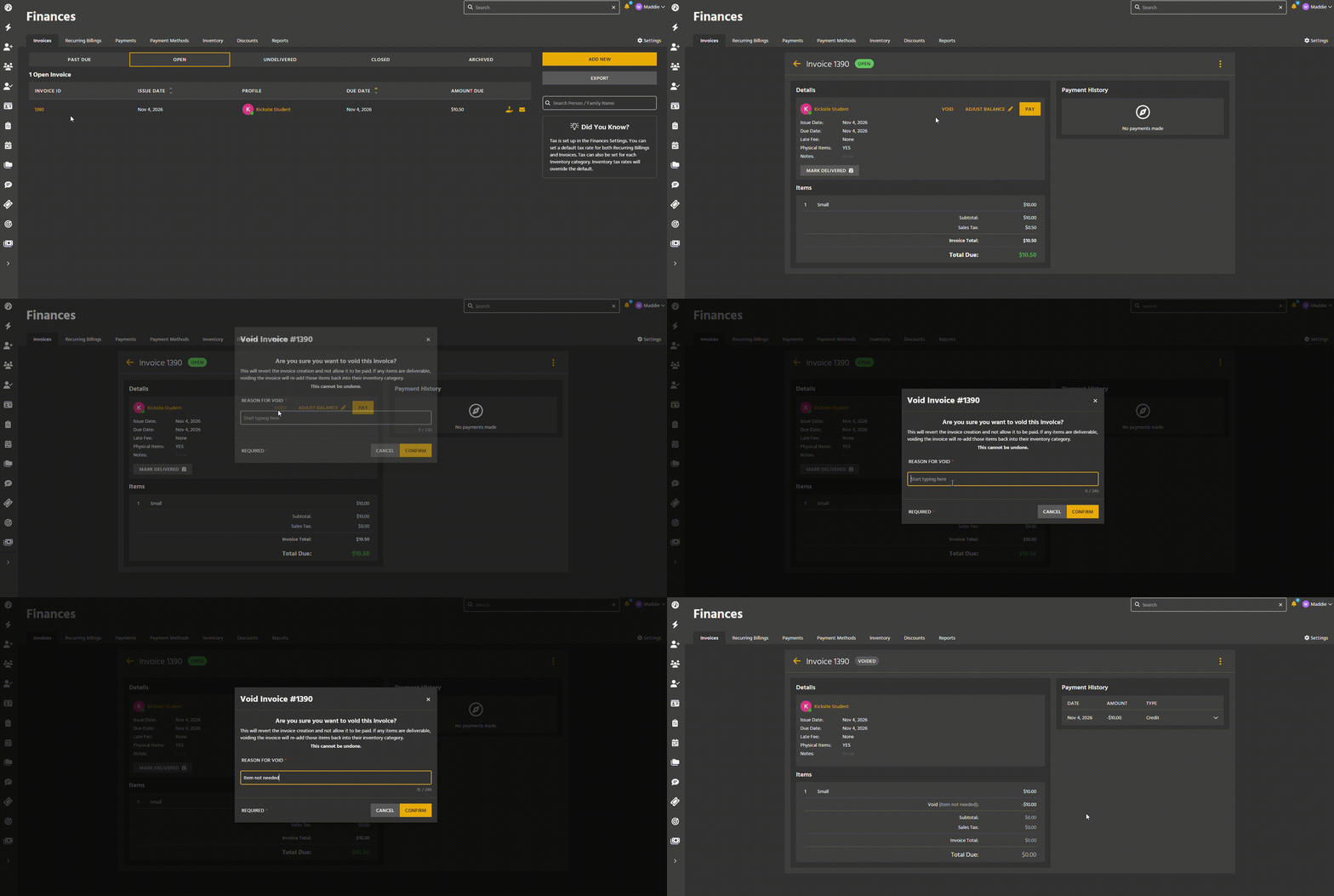
Voiding is only possible when no payment has been made. Typical case: you added the wrong inventory item and want to start over.
- Click Void.
- Type an explanation in Reason for Void. This is required, and it’s what the Voids report shows later.
- Click Confirm.
Crediting part of a balance
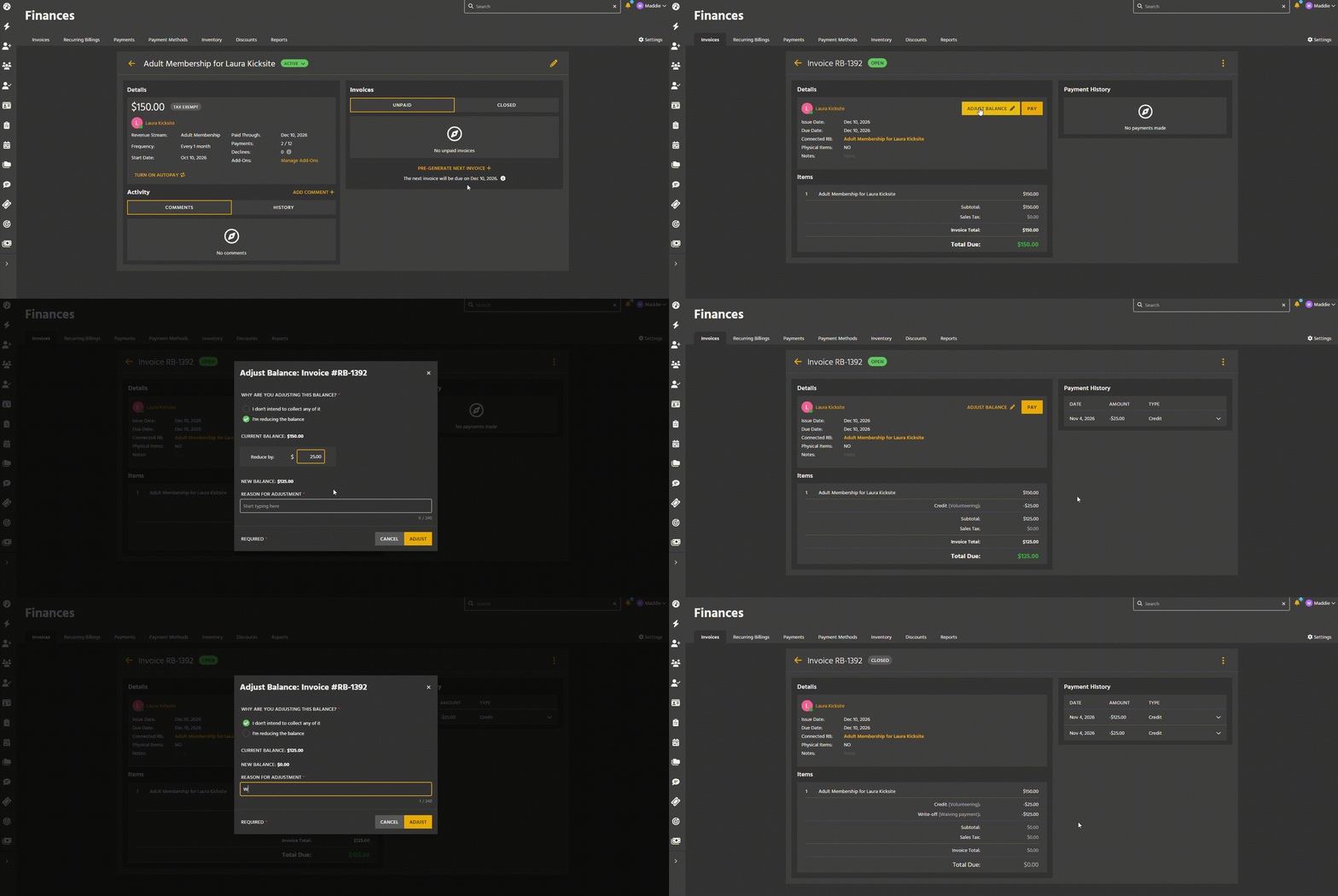
A credit is used to reduce the balance of an invoice. For example, a student cleaned the mats and you’re taking $20 off this month.
- Click Adjust Balance.
- Choose Reduce Balance and enter the amount you’re taking off. The new balance appears at the bottom.
- Enter a reason. This appears on the Adjusted Balances report — future you will want it.
- Click Adjust.
Writing off a balance you won’t collect
You don’t plan to collect the payment – a student is out for a month, someone stopped attending months ago and the balance hasn’t been paid, or you’re giving someone a free month of tuition for volunteering.
- Click Adjust Balance.
- Choose I don’t intend to collect any of it. The new balance is set to zero.
- Enter a reason.
- Click Adjust.
This is the honest way to close it out. It keeps the amount you lost visible in reporting, which changing a paid-through date would not.
Waiving a future recurring billing payment
You want to give someone next month free. That invoice doesn’t exist yet, so you have to create it first.
- Open the recurring billing — from the Recurring Billings tab in Finances, or from the Finances module on their profile.
- Click Pre-Generate Next Invoice +.
- Open the newly generated invoice by clicking its number. Credits apply oldest to newest, so work down from the top.
- Click Adjust Balance, choose Reduce Balance, enter the amount, add a reason, and click Adjust.
Troubleshooting
The Void button isn’t there. Either a payment has been applied, or the balance has already been adjusted. Both rule out voiding. Recurring Billing invoices cannot be voided – only adjusted.
I credited when I meant to void. You can’t undo that. The invoice stays on the books at its reduced amount — leave a clear reason so the record explains itself.
The credit didn’t show up in reports. Look at Adjusted Balances rather than a collections report. Credits reduce what’s owed; they don’t create a payment.
Limitations
- Invoices can’t be deleted – void, adjust, or archive.
- Voiding requires that no payment has ever been applied (discount code, credit, partial payment).
- Invoices connected to a Recurring Billing are adjusted only – they cannot be voided.
- Reducing a balance is one-way, and it closes off voiding permanently for that invoice.