Kicksite Knowledge Base
Print

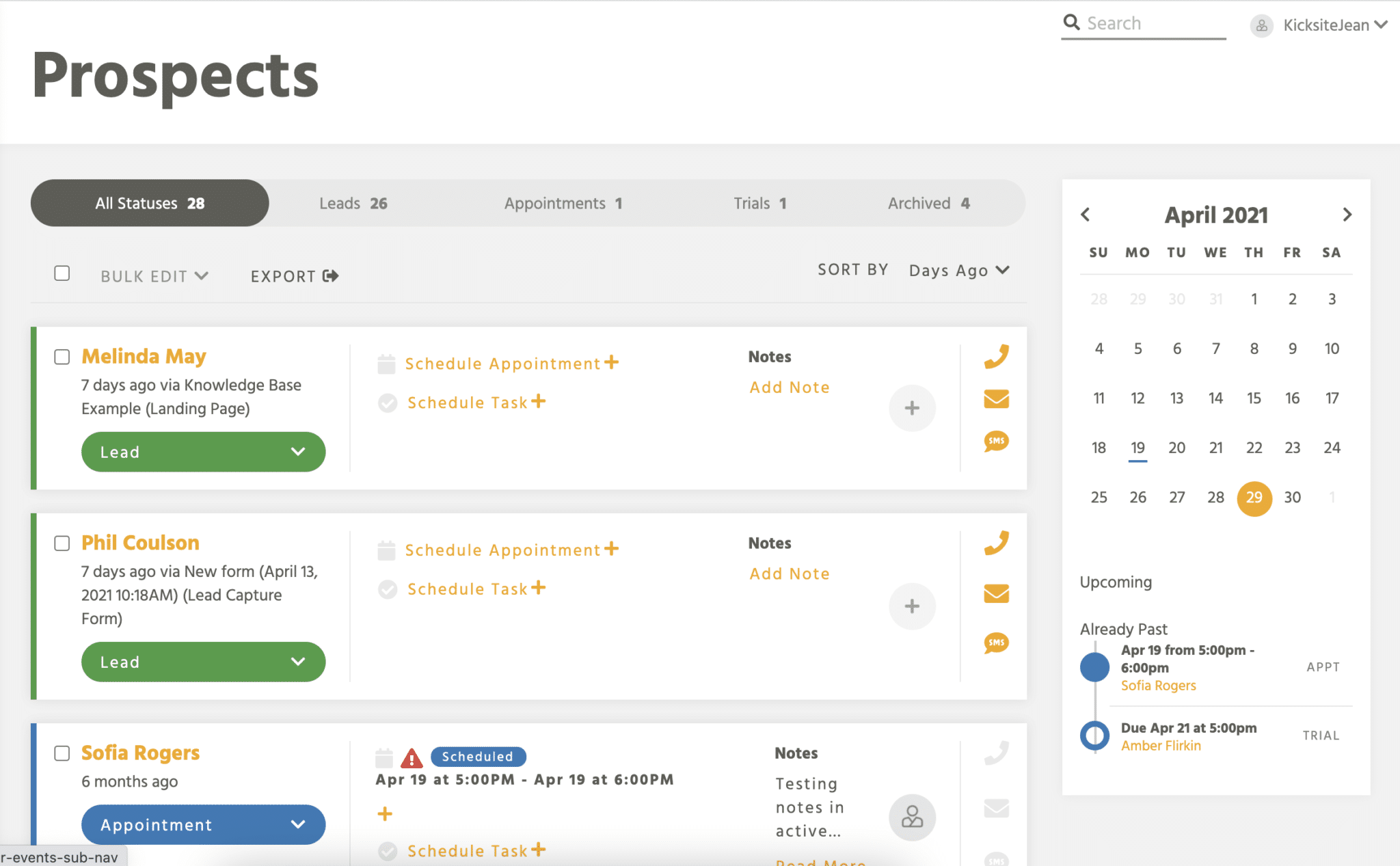
How to Use the Prospect List

The Prospect List is the best place to view all your Prospects and take actions on them. It has two view modes, a board and a table. It’s highly customizable to your school’s needs, and features robust filters.

To get to the List, click the Profiles icon in the left sidebar, then Prospect List. You can also search for it in Quick Links.

Stages

Stages are like the Statuses that Students and Families have, but can be customized to your school’s needs. Each Stage represents a step in your Prospects’ journey to becoming full Students.

By default, there are four Stages on the Prospect List (three if you opened your Kicksite account  prior to July 2025):

  • Lead – Default Stage for newly created Prospects, whether they’re manually added or signed up online.
  • Qualified (for schools after July 2025) – After confirming a Prospect isn’t a spam submission, you can move them to Qualified.
  • Appointment – A Prospect who is scheduled to tour your facility or meet with your staff. Scheduling an Appointment for a Lead or Qualified Prospect will automatically change them to this Stage.
  • Trial – A Prospect who is currently on a Trial Membership. Creating a Trial Membership for a Prospect will automatically change their Stage to Trial.
Creating a new Stage, then dragging it to its desired position on the Board.

Customizing Stages

Each Stage can be renamed and have its color changed. You can also create additional Stages, rearrange them as needed, and delete ones you don’t want. 

  • Please note the Lead Stage can’t be deleted or moved, as it’s the default status for new Prospects, but it can be renamed.
  • If the Trial or Appointment Stages are deleted, the corresponding special actions are also removed. For example, if you delete the Trial stage but decide to make a new one later, the new one will not prompt you to add a Trial Membership when adding a Prospect.

The color selected for a Stage will show throughout the system, just like a Student’s Status. 

  • For example, if you have the Trial Stage set to pink, the system will show a pink dot on everyone with a Trial Membership.

To create a new Stage, click the Add Stage button in the upper right of the Board view. After selecting a name and color, this new Stage can be rearranged by dragging and dropping, or using the Move Left / Move Right actions.

Changing a Prospect’s Priority and explaining why with a comment.

Priority

In addition to the Stage columns, Prospects are also assigned Priority to mark whether they are Hot, Warm, or Cold. 

  • Hot leads (red large flame) are ready to make a decision, and if you don’t show them how you meet their needs, they may go with a competitor. 
  • Warm leads (orange small flame) are in between hot and cold; they don’t show urgency and are in the early stages of making a decision.
  • Cold leads (blue snowflake) have shown little interest in your school and will require significant follow-up. 

All Prospects are Warm by default, but clicking the icon on the bottom right of their card lets you manually swap to a different Priority. Priority can also be changed on the left side of a Prospect’s profile page.

The two View options

There are two modes of the Prospect List: a board and a table. To switch between views, click the icon in the upper right corner.

Creating a new Prospect in the Trial column. A Trial Membership is created for them as part of the process.

Board view

This is the default view for the Prospect List. It can also be thought of as the pipeline that your potential Students go through: They start as Leads and advance through each column until they are full members.

Use it for:

  • Quickly moving Prospects between Stages
  • Figuring out what actions to follow up need to be taken by staff
  • A big picture view of all relevant Prospects

On the board view, Stage columns can be dragged to rearrange them. Prospect cards can also be dragged between columns to update their Stage.

Clicking on the title of a Stage will take you to the table view, filtered to only the people in that Stage.

Some columns will trigger an action when a Prospect is moved into them. For example, moving a Prospect to Trial will require you to add a Trial Membership, or moving someone to Appointment will open the Schedule Appointment window.

Table view

This is the alternate view of the Prospect List. 

Use it for:

  • Tasks requiring sorting (by name, Stage, etc.)
  • Viewing Archived Prospects
  • Exporting a list of Prospects

Actions on the List

Some actions are available on both views, while others can only be done on the board.

Setting the Trial column to show the Time Left in Trial, instead of Most Recent Comment.

Stage Actions

On the board, actions can be taken on an entire Stage column. Click the kebab (three vertical dots) in a column’s header to access them.

  • Add a Prospect – Create a new Prospect in the current Stage column.
  • Show on Card – Select what will be shown on each Prospect’s card. Options are showing the most recent comment, the soonest Appointment, or amount of time left in Trial Membership. Only school admins can perform this action.
  • Edit Stage – Change the name or color of the column (see “Customizing Stages” above).
  • Send Email – Create an email Announcement to everyone in the column. Prospects without an email address will be skipped.
  • Send SMS (only schools with an SMS integration) – Create an SMS Announcement to everyone in the column. Prospects without a phone number, or who have opted out of text messages, will be skipped.
  • Move left / right – A Stage column’s order on the board can be changed. You can also move a column by clicking and dragging on its header.
Adding a comment on a Prospect, then moving them to the next Stage. You can use the Change Stage action or drag-and-drop.

Profile Actions

You can also perform actions on each Prospect. To open the menu, right click a card, or hover over it to view the kebab in the upper right, then click the kebab.

  • Change Stage – Select the Stage you want to move them to. This may lead to additional actions, such as if you move them to Trial.
  • Convert to Student – Opens the window to convert a Prospect to Student. All records of their time as a Prospect will remain in their History module, but any Trial Membership will end, and they will become an Active Student.
  • Assign To – Select the Employee you want assigned to this Prospect.
  • Schedule Appointment – Opens the Add New Appointment window.
  • Schedule Task – Opens the Add New Task window.
  • Send Email – Create an email Announcement addressed to just that Prospect.  
  • Send SMS (only schools with an SMS integration) – Create an SMS Announcement addressed to just that Prospect. If the Prospect doesn’t have a phone number, or has opted out of text messages, the message won’t send.
  • Archive – Move the Prospect to the Archived status. Use this Stage for Prospects who don’t intend to come back, never signed up to begin with, or have been Prospects for a long time (more than a year, for example).
    • Note: Archived Prospects are only visible on the table view, to keep the board tidy.
Changing to the Table view, then filtering to only Archived Prospects. Clicking Clear resets any applied filters.

Filters

The same filters are available on both the board and table views. These are helpful for narrowing down to specific sets of Prospects. When switching between the board and table view, filters stay applied.

To apply filters, click the Filters button in the upper right. From here, you can select a date range and/or other filters. Multiple items can be selected in each list; choose ALL to include everything in that filter. 

To remove all filters, click Clear in the Filters dropdown.

If filters are applied and you do a column action, such as sending an Announcement, only the Prospects currently filtered to will be included.  If a column is empty because no one matches the filters, it will say so.

The filters include:

  • Date range – When the Prospect was created. By default, no specific range is selected, so all Prospects are shown. Select a start and end date to view profiles created during that time.
  • Source – The Prospect’s Source. If they came from a Landing Page (abbreviated as LP) or Lead Capture Form (LCF), that is their default Source. Source can be manually changed on the person’s profile.
  • Assigned to – The Employee assigned to a Prospect, if there is one. Assigning an Employee to a Prospect gives them notifications about that person and encourages them to follow up with the potential customer.
  • Stage – Select one or more Stages. This is most helpful on the table view. For example, to view only Archived Prospects, you would check only the Archived Stage.
  • Priority – View just one or a combination of Hot, Warm, and Cold.
Clicking on a Priority on the Dashboard will apply that filter when it takes you to the List.

Prospects on The Dashboard

In addition to using the Prospect List, you can get information on the Dashboard. There are two modules for Prospects – Pipeline and Distribution.

The Pipeline view shows how many people are in each Stage, also divided out by priority. Clicking an arrow will take you to the board view with only that Stage displayed, while clicking a Priority icon will filter down even further.

The number of new Prospects is also shown in the Pipeline module. By default, Prospects created in the last 7 days are shown. You can edit the day range by clicking Customize Dashboard in the upper right. Clicking View goes to the board view, filtered to Prospects created within that day range.

The Distribution view shows a pie chart of how many of your Prospects are in each stage, as well as in each Priority. Clicking either arrow will take you to the board view.

Contents