Best Practice: How to Create an Employee Account for Attendance
Creating an employee account only for attendance on a tablet is the single highest-value security step in Kicksite. This is considered best practice, no matter how many students you have, to protect your students’ contact details, your finances, and your settings.
Create the account
Only an administrator can create employees.
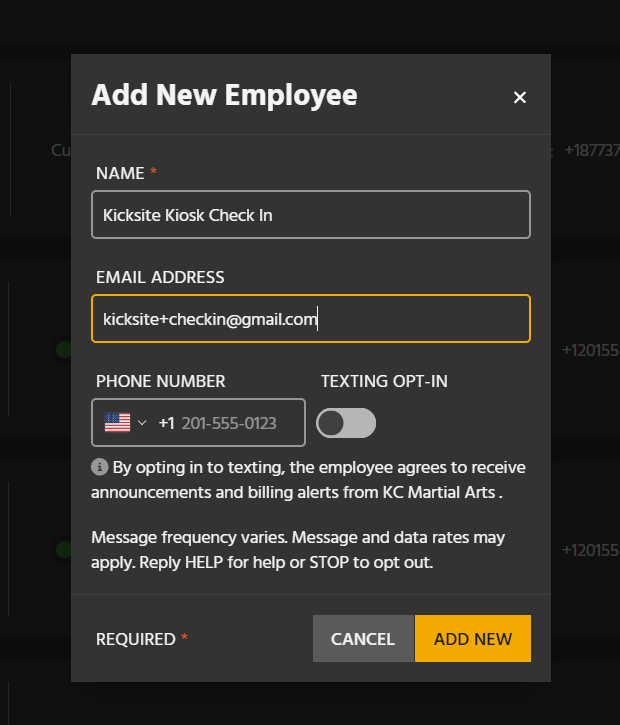
- Click Quick Links in the left panel, then People & Families, then Add New Employee. Or click your username → Employees → Add New Employee.
- Name — this becomes part of the username, and usernames must be unique across every school on Kicksite. Include your school name or an abbreviation: “KMA Attendance” or “Checkin KicksiteMartialArts”, not “Front Desk”.
- Email Address — required to create a login, and it must be different from the admin’s.
- Phone Number (optional) — leave SMS off for this account.
- Click Add New.
Turn off its access
- Click the new employee’s name in the Employee list.
- In Contact Information, toggle Daily Appointments and Daily Tasks off. Click Save.
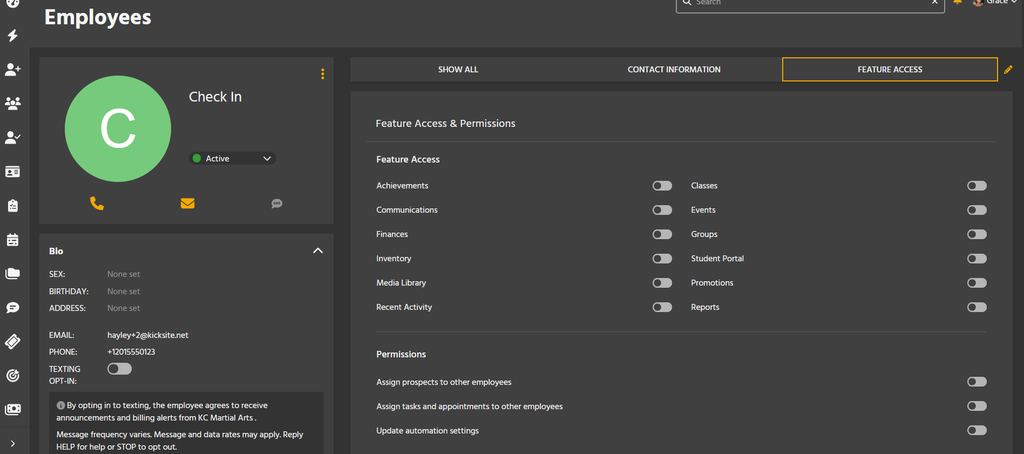
- In Feature Access & Permissions, turn every toggle off. Click Save.
An account with no features can still run Kiosk Check-In.
Give it a login
- Click User Account in the left column of the profile.
- Click Create.
An email goes to the address you entered with a username and temporary password.
Sign in and set the password
On the kiosk device:
- Open the email and copy the temporary password, then click Sign In Now.
- Enter the username and paste the password.
- Click the username in the upper-right corner, then My Account.
- Scroll to Credentials and click the Password row.
- Enter the current password, then the new one twice, and click Save.
Write the new password somewhere your staff can find it. Everyone at the front desk will need it — that’s fine, which is exactly why it isn’t yours.
Put it to work
On the kiosk device, log in with the attendance account, then click Attendance → Kiosk Check In in the left panel. Enter the username and password again when prompted.
That second login is deliberate. It’s what stops a student backing out of check-in and into the account behind it.
Then install it as an app so it opens full-screen with no browser controls.
Troubleshooting
The username was taken. Usernames are unique across all Kicksite schools, not just yours. Add your school name or an abbreviation.
Can’t create the user account. The employee needs an email address, and it can’t match another user’s.
The kiosk logged itself out. Sessions expire after 2 hours. Log back in with the attendance account.
The account can’t reach Kiosk Check In. Check it’s Active — an inactive employee can’t log in at all.